You can download a video from Vimeo whenever its owner has turned downloads on, and on a paid plan you can download every video in your own account, including the original file you uploaded. When you download Vimeo videos, you can watch them offline, share approved files with collaborators, or keep a backup once you've finished trimming or resizing a video in our video editor.
This guide covers how to download from Vimeo on any browser, how to export your own videos and source files, how creators control downloads, and what to check before you trust a Vimeo downloader or migration app with your library.
How to download a video from Vimeo
Viewers download from the video's own page on vimeo.com, in Chrome or any other browser. The Download button doesn't appear in embedded players, so if you're watching a video on another website, open it on vimeo.com first and log in to your Vimeo account.
1. Select Download below the video player. If you don't see the button, the owner has most likely turned downloads off for that video.
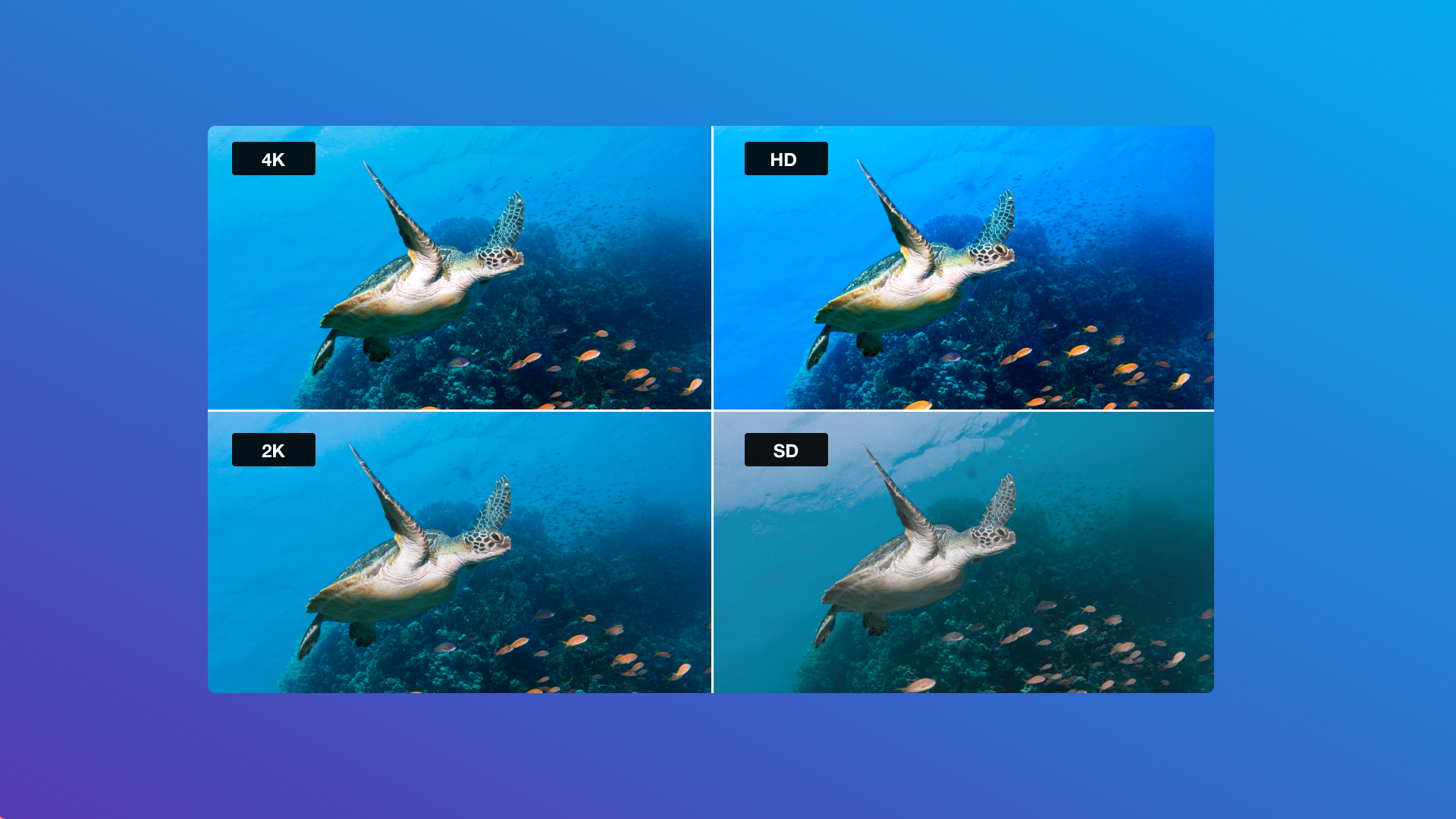
2. Choose a version. A window opens with the available file sizes. A higher-quality file suits presentations and editing, while a smaller one is quicker to play back and share.
3. Select the download icon next to the version you want. You need to be logged in to download the source file of a public video.
4. Save the video to your device.
Some browsers open the video in a new tab instead of saving it. On Windows, right-click the link and choose Save as or Save target as. On a Mac, hold down Control, click the link, then choose Save link as or Download linked file. Our Help Center article on how to download a video has more detail.
How to download and back up your own Vimeo videos
On a paid plan, you can download any video in your Library, whatever its download setting. As the owner, you always see the Download button on your own video pages, even when viewers don't. On the Free plan, you can't download videos from your own account.
To download a video from your Library:
1. Go to your Library and select the video to open its settings page.
2. Select the options menu (…) in the top right corner, then select Download.
3. Select the download icon next to the version you want to save.
Keep your original source files
Your source file is the original, untranscoded file you uploaded. It's the best version to keep for future editing or re-uploading. Source file storage requires a paid plan and isn't turned on by default. To turn it on:
1. Go to your account settings and open the Videos tab.
2. Under Upload Defaults, find the Video preferences section.
3. Check Keep source video files and select Save.
The setting applies to future uploads only, so it won't restore source files that were removed before you turned it on. Once it's on, you can download your stored source files at any time, and if you replace a video, only the source file for the latest version is kept. We also recommend keeping your own independent backups, so you always have your originals whatever changes on your account. Read more about storing source files.
Downloading many videos at once
You can't select several videos in your Library and download them in one batch. Download each video from its settings page, or contact Vimeo support if you need help with multiple downloads.
How creators can turn downloads on or off
Paid members decide whether viewers can download each video on Vimeo, and Free plan members can't enable downloads. Turning downloads on gives viewers permission to save a copy, but the video creator keeps the copyright. Downloads are set in a video's privacy menu:
1. Log in and go to your Library.
2. Select the video you want to change.
3. Select the video's current privacy setting at the top right of the page to open the privacy menu.
4. Toggle Allow downloads on or off. Your choice saves automatically.
To apply the same choice to many videos, set it in your upload defaults and check Also apply to existing videos before you save. You can switch downloads back on at any time from the same settings. Turning them off removes the Download button for viewers only, so you can still download your own files. See the overview of how to change download settings for each option.
Should you use a third-party tool to download your Vimeo videos?
If you need to download many videos at once, the safest route is through Vimeo itself. Download each video from your Library, or contact Vimeo support for help with multiple downloads. Third-party video downloader sites, Chrome extensions and "migration" apps promise a faster path, but check how much access one asks for before you use it.
- Some exporters take control of your account. To move your library, migration apps and exporters ask you to sign in with Vimeo and grant them permissions. Depending on what you approve, an app can act on your behalf, which can include editing or deleting your videos, changing their privacy settings and updating your account details, as well as downloading files. The app keeps that access until it's revoked, so read every permission an app requests and check who runs it before you connect your account.
- You may not get your original file. The highest-quality version Vimeo keeps is your source file, and it's only stored if Keep source video files was turned on. Check your account settings and download source files directly from Vimeo first.
- Some tools violate Vimeo's Terms of Service. A downloader that grabs a video from its link, or a scraper that works outside Vimeo's API, isn't permitted under our Terms, and many ignore the download permission a creator set for a video.
- Vimeo can't fix a failed transfer. An unofficial downloader for Vimeo isn't built or maintained by Vimeo. If a download stops partway through or files arrive incomplete, the tool's maker is your only support. Open and check every file before you rely on it.
If you're reviewing your plan, you don't need to rush a backup. Existing members move automatically to the new plan that keeps full access to their library, so no videos are deleted.
Vimeo video download FAQs
Can I download a Vimeo video embedded on another website?
No. Viewers can only download from the video's page on vimeo.com, and only when the owner allows downloads. Open the video on vimeo.com to check for a Download button.
Can I download all my Vimeo videos at once?
Not in a single batch from your Library. Download each video from its settings page, or contact Vimeo support if you need help with multiple downloads.
How do I download the original file I uploaded?
Download the source file from your video's settings page. Vimeo stores source files on paid plans only when Keep source video files is turned on in your upload defaults, and the setting applies to future uploads.
Is it safe to use a third-party Vimeo downloader?
It depends on the tool. Some exporters ask you to sign in and grant permissions that let them act on your account, including editing or deleting your videos, so check every permission before you connect one. A Vimeo downloader site or browser extension that grabs videos from a link or bypasses a creator's download settings isn't permitted under Vimeo's Terms of Service. For your own videos, downloading directly from Vimeo is the most reliable way to get every file, including your originals.
Why don't I see a download button on a video?
The owner has most likely turned downloads off. You also won't see the button in an embedded player, and Free plan members can't download from their own account. Troubleshooting: I don't see a download button on a video covers other causes.
What happens to my videos if my Vimeo plan changes?
Existing members move automatically to the new plan that keeps full access to their library, so no videos are deleted. Before your renewal, you can also choose any of the new plans.
Keep your videos organized in Vimeo
Downloads give you a copy of your work, and your Vimeo Video Library keeps everything searchable and secure in one place. Only you and the team members you've given access can see the videos in your Library, whatever their privacy settings. Public videos stay free and unlimited on every plan.